VIBE Coding for Data Scientist
VIBE Coding
- AI-assisted software development technique that helps user to code from prompt
- Introduced by Andrej Karpathy in 02/2025, a Director of AI and Autopilot vision at Tesla, also cofounder of AI research group at OpenAI
Why VIBE Coding for Data Scientist
- Similar to Software Engineering, Data Scientists receive very great support from VIBE Coding to help him/her to code with data in any language and write comprehensive reports based on what has been completed
Tool that I use for VIBE Coding
- There have been many tools out there support DS to apply VIBE Coding. However the 2 most popular and widely used IDE that I am using are Cursor from Anysphere Inc and Visual Studio Code from Microsoft.
- Why? I am fortune enough to have support from the University and AI Coaliation group at SMU to get get Pro subscription for both Cursor and VSCode. The Pro subscription give me more access to better LLMs (at the time of writing this: Anthropic Opus 4.5, GPT 5.3, etc.).
- If you do not have Pro version? Not to worry, Cursor gives edu domain 1 year free to Pro subscription and same as VSCode.
- If you still do not have Pro version, both Cursor and VSCode’s free plan is able to help you to do VIBE Coding to a certain level.
Setting up environment
- In this post, I only focus on Python, but this VIBE Coding can be for any programming languages
- If you do not have python installed in your PC, I encourage you to install Miniconda for your OS.
- You may need to initialize Miniconda: from Window VSCode Powershell: (assume Miniconda installed to C:\ProgramData\miniconda3)
$ C:\ProgramData\miniconda3\Scripts\conda.exe init powershell
Cursor/VSCode IDE
- File/Open Folder, default to Documents
- In this IDE, there are 3 buttons which help you to toggle on/off some windows:
- Left: Window explorer where you can see all files & folders inside
- Middle: Terminal
- Right: AI Assitance
Download data & material to follow with VIBE Coding:
- In the terminal, Clone the material from github:
$ git clone https://github.com/vuminhtue/VAIBE_Coding.git
$ cd VAIBE_Coding
-
You should install your own conda environment for this project. I do have multiple conda env for different projects of mine.
-
In terminal, create a conda env and install requirement using the requirement.txt listed in the VAIBE_Coding folder.
$ conda create -n ds1 python=3.10 -y
$ conda activate ds1
$ pip install -r requirements.txt
Let’s start some VIBE Coding
- If you follow the previous steps, From Cursors/VSCode IDE, Click open folder and navigate to the VAIBE_Coding folder you just clone.
-
You will see the window like this:
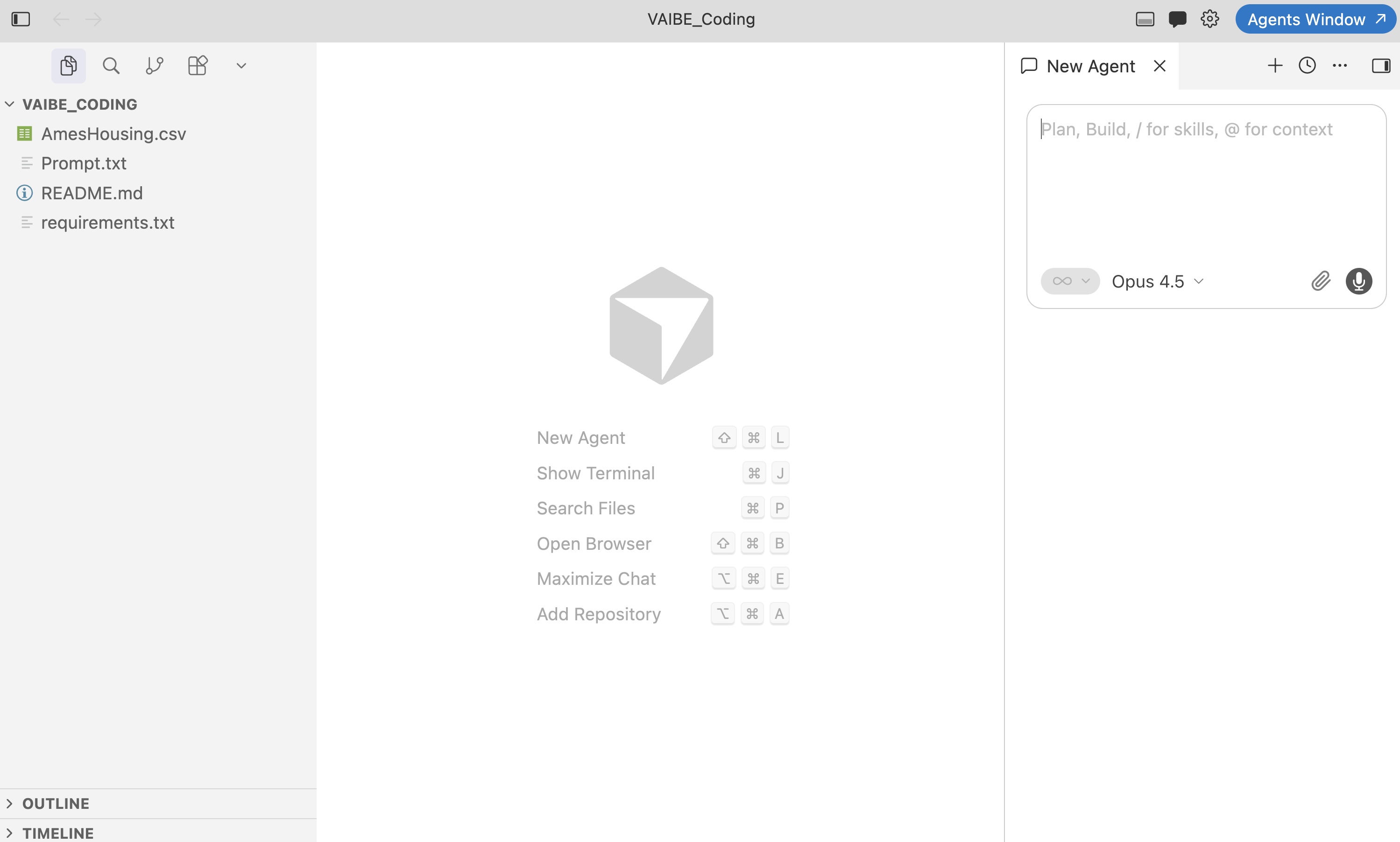
- This is a Data Science project, which uses AmesHousing.csv dataset, and you need to create a ML project to predict the house prices for Ames region in Iowa based on all features of the housing in that district.
- Typically, you would create a ipynb file and start coding with following workflow:
- Read input csv
- Performs some EDA to explore data
- Apply some imputation to treat missing data
- Depend on the target file, you may want to do classification and prediction purpose, etc.
- However, with VIBE Coding, you do not need to do the code by yourself. Instead we can just apply the prompt. I have the prompt.txt in the same folder with the following content:
Create ipynb that perform the following steps:
Step 1: Load the AmesHousing.csv using pandas
Step 2: Perform EDA:
    - Check for missing values
    - Perform imputation if there is missing values
    - Split into categorical and continuous variables and do the EDA
    - Based on EDA, apply feature selections or regularization using LASSO, and make it as input ready for next Step
    - Save all the plots in png folder
Step 3: Supervised Machine Learning
    - Split into 80-20 for training testing
    - Apply K-fold cross validation (5-fold)
    - Using Random Forest and Gradient Boosting Trees
    - Use SalePrice as target and feature selection as input from previous Step 2
    - Shortlist important features after modeling
Step 4: Create report documents in Latex format having 4 chapters:
    - Chapter 1: Introduction
    - Chapter 2: EDA and put all plots from png folder into this chapters
    - Chapter 3: Modeling part: write detailed description about the modeling using Random Forest and GBT
    - Chapter 4: Discussions and Conclusions
    - Save all Latex files in report folder
- The prompt is not comprehensive, you can always finetune it to have better prompt.
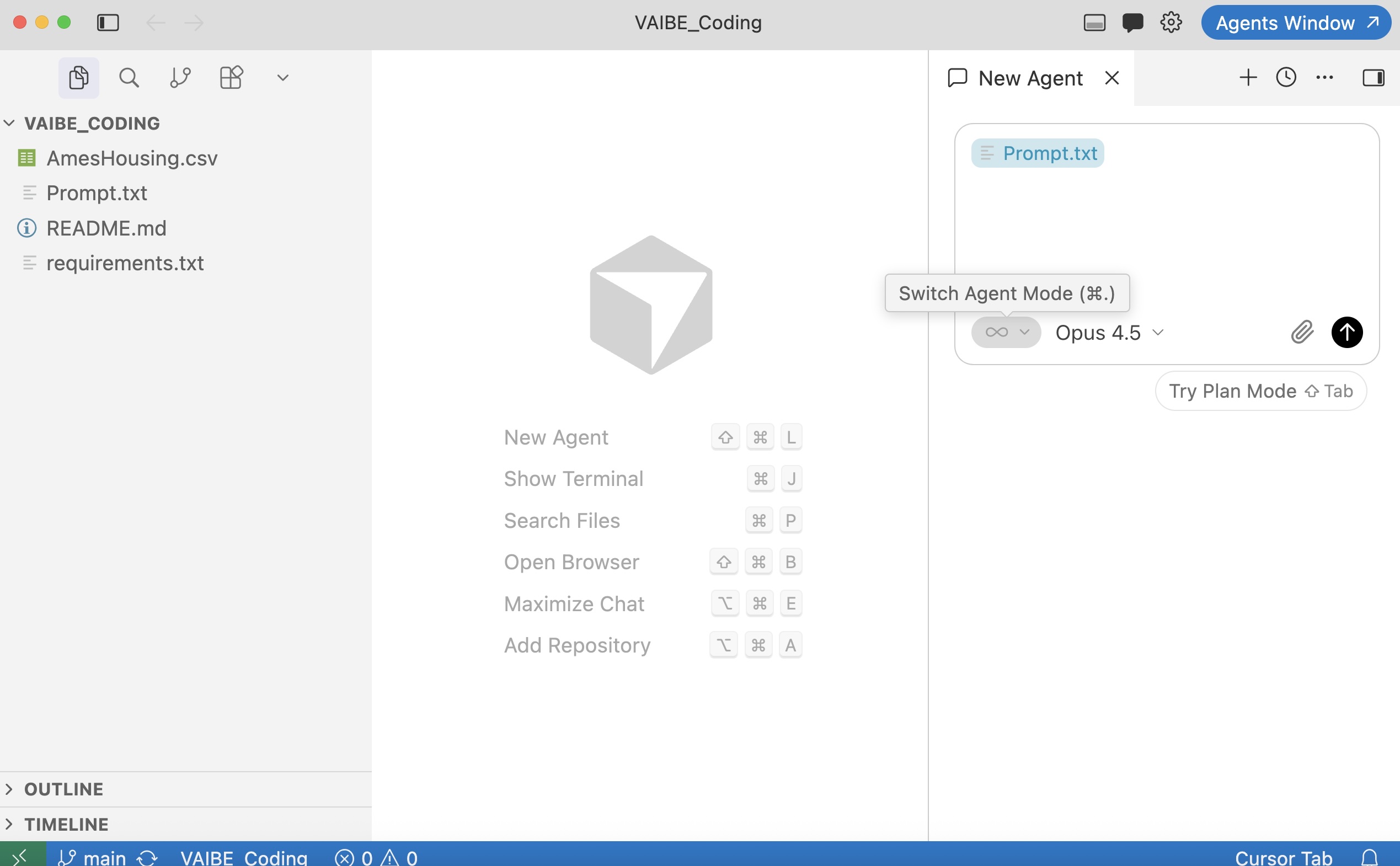
- Next, drag and drop the prompt.txt to the chat window with AI Assistance. Remember to change the mode to the infinity logo (which is Agent mode, you can see from image, it is next to Opus 4.5, which is the Claude model). Press enter.
- Once the AI model finish generating new ipynb and Report, you can convert the report from md format to pdf using pdflatext:
$ pdflatex report/main.tex
Note: if you do not have pdflatex installed, you can do that for your system:
- Window: Download the installer from miktex.org/download
- MacOS: Download the MacTeX.pkg installer from tug.org/mactex
Congratulations!
- You have done your first VIBE Coding task.
- If you are stuck, check out my recording